Program Editor for Motion Controller
Note: This topic describes the new Program Editor, used with robots that run on the Motion Controller. If you are programming a robot that uses the traditional Robot Controller, see Program Editor.
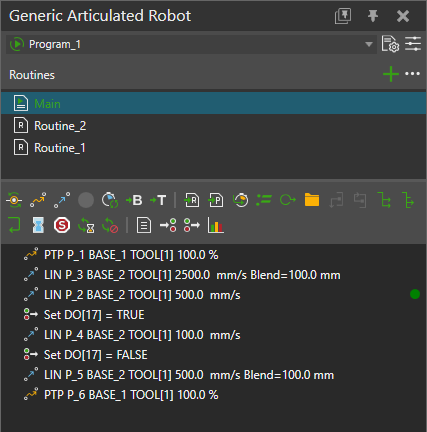
The Program Editor panel allows you to view and edit a robot program, preview motions, and program other types of components using RSL statements.
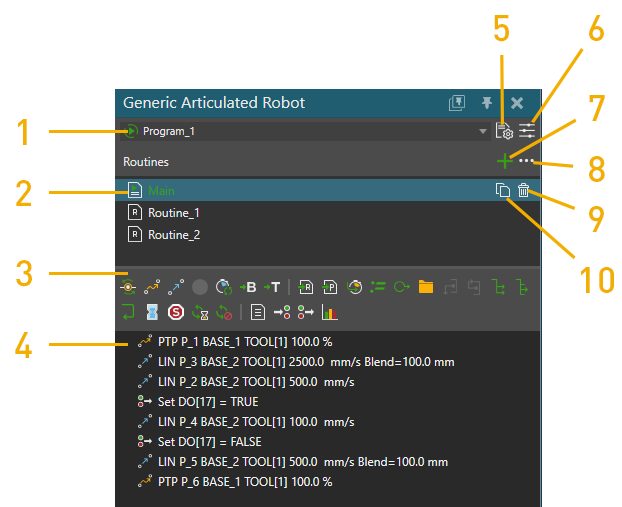
- Current program. A green triangle icon before the program name means the program is active, and it will be run when the simulation is started.
- List of Routines. A green triangle icon in a routine symbol means that the routine is set as the main routine, which will start to run when the simulation is started.
- Statements Toolbar
- Robot program/statement list
- Open Program manager
- Open program properties
- Add a routine
- Routine options
- Delete a routine
- Create copy of the routine
Statements Toolbar
The Statements toolbar displays commands for adding RSL statements to the program of a selected robot in the 3D world.
| Name | Description |
| Assign variable Statement | Assigns a value to a variable. |
| Break Statement | Ends the execution of loop. |
| Cancel Program Sync Statement | Invalidates a Sync Id set earlier. |
| Call Program Statement | Executes a specified program. |
| Call Routine Statement | Executes a specified subroutine in program. |
| Comment Statement | Leaves a comment in program. |
| Continue Statement | Sets loop to continue from next iteration. |
| Create Group Statement | Creates a statement group. |
| Define Base Statement | Sets the properties of a base frame in robot. |
| Define Tool Statement | Sets the properties of a tool frame in robot. |
| Delay Statement | Delays the execution of program. |
| Halt Statement | Stops the execution of program. |
| If Statement | Defines an if-then-else condition for executing one group of statements if the condition is True or another group of statements if the condition is False. |
| Joint Statement | Executes a joint motion by moving each axis to its target values. |
| LIN Statement | Executes a linear motion to a position based on the current configuration. |
| Motion Sync Statement | Synchronizes motions across two or more executors. |
| PTP Statement | Executes a Point-to-Point motion in which a robot interpolates its joint values to reach a position. |
| Program Sync Statement | Synchronizes program execution with other programmable components using a matching sync message. |
| Return Statement | Ends the execution of routine. |
| Set Binary Output Statement | Sets the value of a digital signal connected to a robot output or signals an action in the robot. |
| Set State Statement | Sets statistical state of the machine. |
| Switch Case Statement | Executea one of the predefined case scopes based on the evaluated value of the Condition expression. |
| Touch-up | Updates the properties of a motion statement for a selected robot position. |
| Wait Async Statement | Waits for asynchronous statement to complete. |
| Wait for Binary Input Statement | Waits for a digital signal connected to a robot input to reach a specific value. |
| While Statement | Defines a condition for executing a group of statements in a loop. |
Program
A robot's program is saved with the robot in a layout. A program can contain multiple Routines, and one of them is set as the main routine. When the simulation starts, the main routine begins running.
If you need to rearrange statements in a program, drag and drop a statement before or after another statement. The place where you are inserting a statement is shown by a line that will also indicate at what level you are inserting a statement.
When running a simulation, the current statement being executed in a robot program is indicated by a green dot in the right-side of the Program Editor panel.